NSX-T

NSX T 3 Edge Cluster Failover Scenario | LAB2PROD
NSX-T 3 Edge Cluster Down After An Edge VM In The Cluster Fails.
This article will walkthrough an interesting NSX-T Edge Cluster Failure Scenario that can be seen during an Edge Cluster Failover.
TLDR;
In NSX-T 3.0 the edges require an active BFD session in order to remain in an up/active state. When you have two edge virtual machines in a cluster, they create a session amongst themselves but will only create a session to a host when that host has active workload on it.. that is a virtual machine on an overlay segment. If you have VIP’s or
virtual machines attached to VLAN backed segments your edges will still go down in this scenario.
Scenario
After deploying NSX-T 3 and configuring the basics such as; deploying edge virtual machines in active/active, T0 gateways, T1 gateways and some segments, some of you may start to test fail-over and resiliency.
I’ll begin with showing the healthy edges in the cluster when both are up;


Failing one of the edges – force power off nsx-en2, leaving nsx-en1 still powered on
Failed edge node but remaining edge still in an active state
When doing so there are many different failure scenarios you could test with the edge virtual machines, such as putting one into maintenance mode, shutting one down, rebooting one or simply replicating a host power outage or network isolation (shutting network ports down).
When performing these tests myself I noticed that when failing an edge virtual machine in a 2 node edge cluster, the remaining edge virtual machine would also move into a down state.. even though it was actually healthy and was able to communicate with the host teps!
For the purpose of this article, the edge cluster consists of two edge virtual machines called nsx-en1 and nsx-en2.
NSX-T 3.0 Edge Cluster
I’ll begin with showing the healthy edges in the cluster when both are up;

The Edge TEPs are on 192.168.66.0/24 an the hosts are on 192.168.65.0/24, the below screen shot shows the edge being able to ping the host teps.
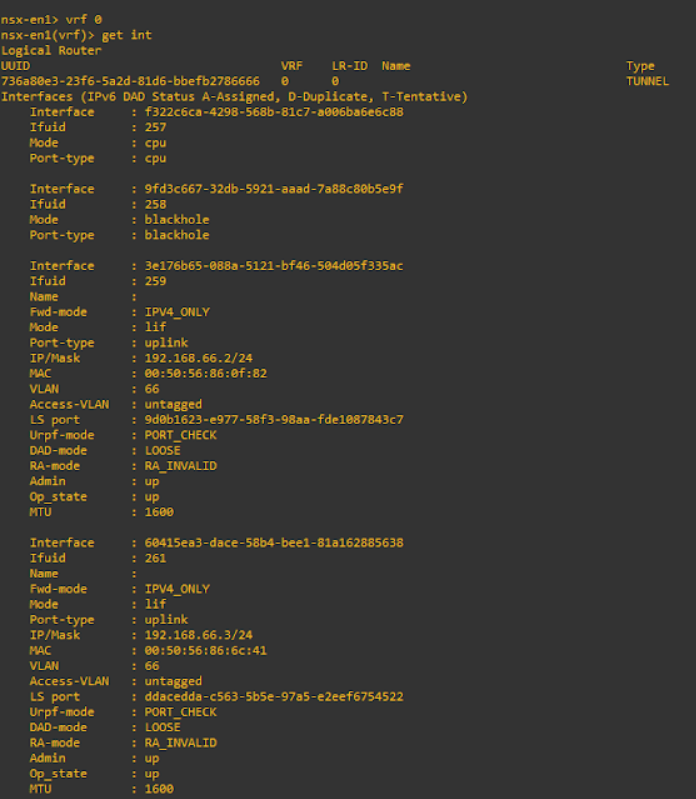
Pings from nsx-en1 to the host TEP IP addresses and nsx-en2 are successful;
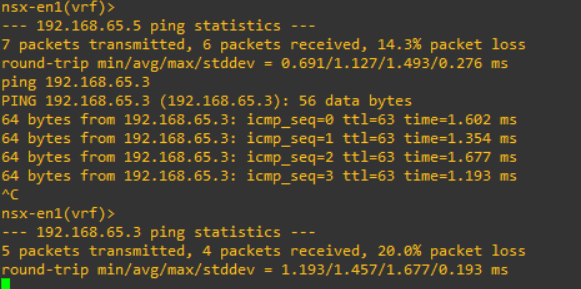
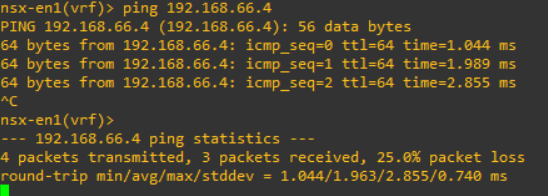
Similarly running get bfd-sessions on the edge virtual machine will list further details about the sessions between the edge nodes and the host transport nodes.
Failure Scenario
Failing one of the edges – force power off nsx-en2, leaving nsx-en1 still powered on 

Going back and checking the status of the edges shows that both are now down, even though one is actually still up. Remembering this is a new environment and these testes are being done right after the initial build, which means there is no overlay workload on the hosts and all tunnels were previously up.

Running the same commands now will show there are no tunnels currently up between the remaining host transport nodes and nsx-en1. Once the downed edge is brought back up, all is OK again.
After a lot of troubleshooting and testing different ways of failing the edge virtual machine (maintenance mode, migrating and powering off, removing nics), the second edge never remained in an up state after one was failed.
Once it was evident that the edge virtual machine was going down because it had no BFD sessions active, I created an overlay segment, plumbed it into the T0 gateway and attached a virtual machine, I made sure prior to failing an edge that the virtual machine could communicate with the physical network.
Now after failing an edge node the other remains active as there is still an active tunnel to the host, which keeps the edge in an up state.
Failed edge node but remaining edge still in an active state

Checking the tunnel status on the edge node…. success!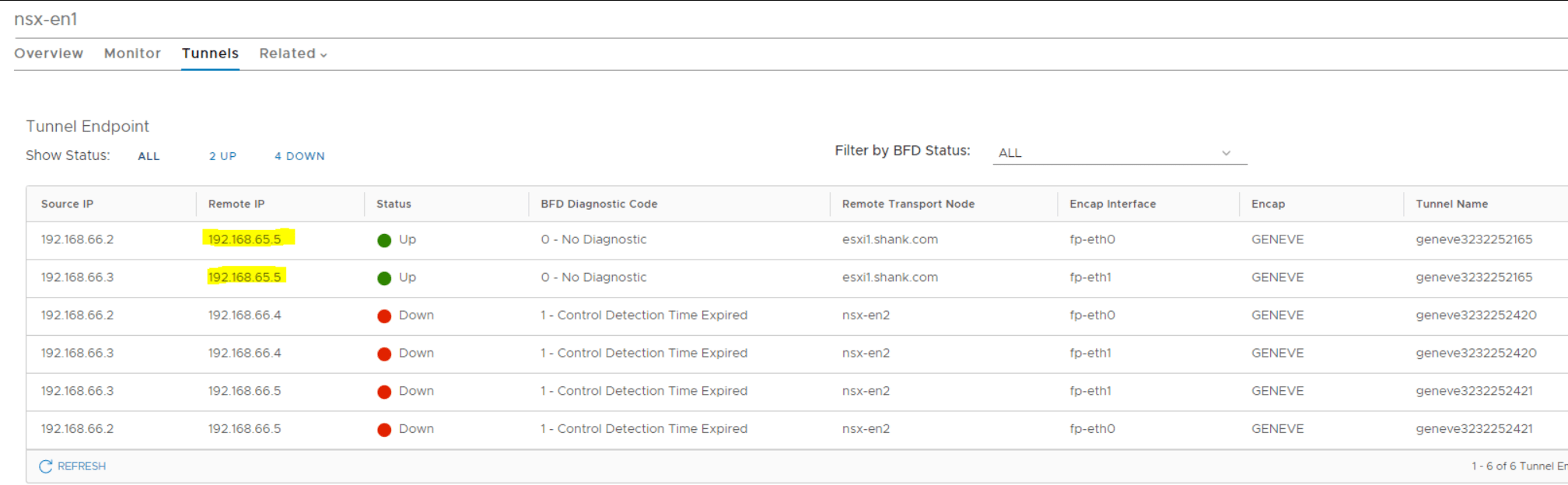
In summary, if you have just installed or upgraded to NSX-T 3 and you find when failing one edge virtual machine in a two node cluster the other also goes down. This is because it has no BFD sessions / tunnels active (note VLAN backed segments or load balancer VIPs are not the same as overlay backed segments with active workload on them!!). The reason it is all happy when the other edge node is up is because there is a BFD session between the two of them and not with any of the host transport nodes. An active session is only created with a host transport node when it has active workload on an overlay segment.
Shank Mohan
0